Draft: this guide shows the next app release (1.1.55) and may not match your phone until that version is in the App Store and Google Play.
Notifications
Turn alerts on, choose which ones you get, or turn them off.
Turn alerts on
1When the app asks
When the app asks, tap Turn on, then Allow.
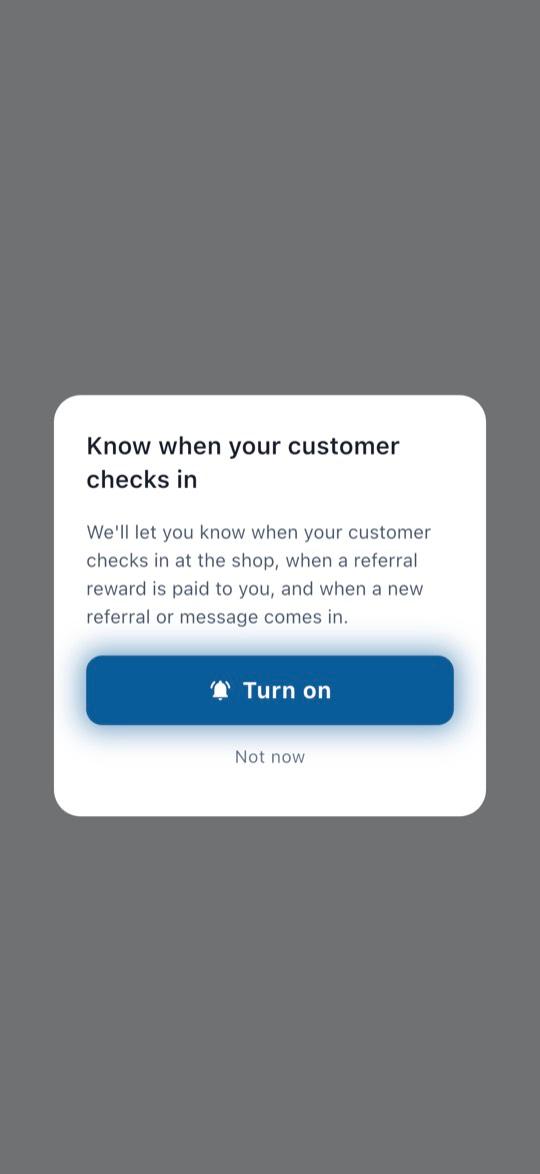
2Later: Profile → Notifications
Profile → Notifications shows On, Quiet: no alerts, or Off. If it isn’t On, tap Turn on. If your phone has already said no, it opens your phone’s Settings and tells you what to switch on.
Choose which alerts you get
3Notification Preferences
Profile → Notification Preferences lists each kind of alert with a Push switch, and an Email switch where email is offered. Which ones you see depends on your role at the shop.
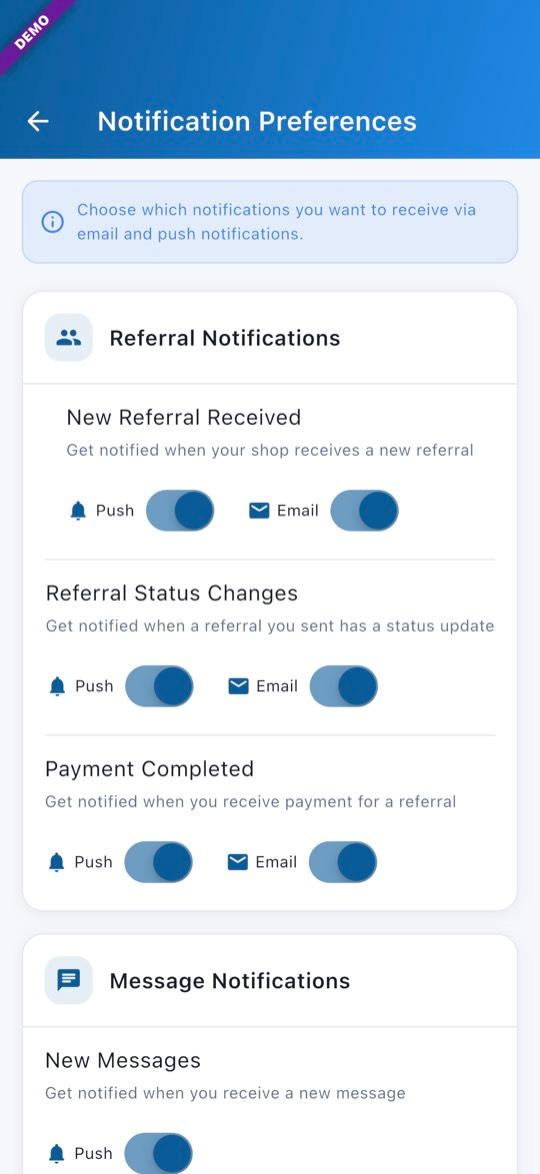
Make them quiet or turn them off
4In your phone’s Settings
To stop one kind of alert, switch its Push off in Notification Preferences. To silence or turn off all of them, use your phone’s Settings, under Notifications, then My Refer Buddy. On an iPhone, Quiet: no alerts means they arrive silently in Notification Center.
Questions? Email info@AINcollective.com or call (719) 463-0050.