Draft: this guide is being updated for the next app release and may not match your phone yet.
How the DVI works
The Digital Vehicle Inspection: the tech starts it, the service advisor finishes it at checkout.
Find inspections
Everyone uses their own phone. Each inspection is shared with the shop team, so whoever is next opens it from DVI → Open. The DVI tile shows only at shops with digital inspections turned on.
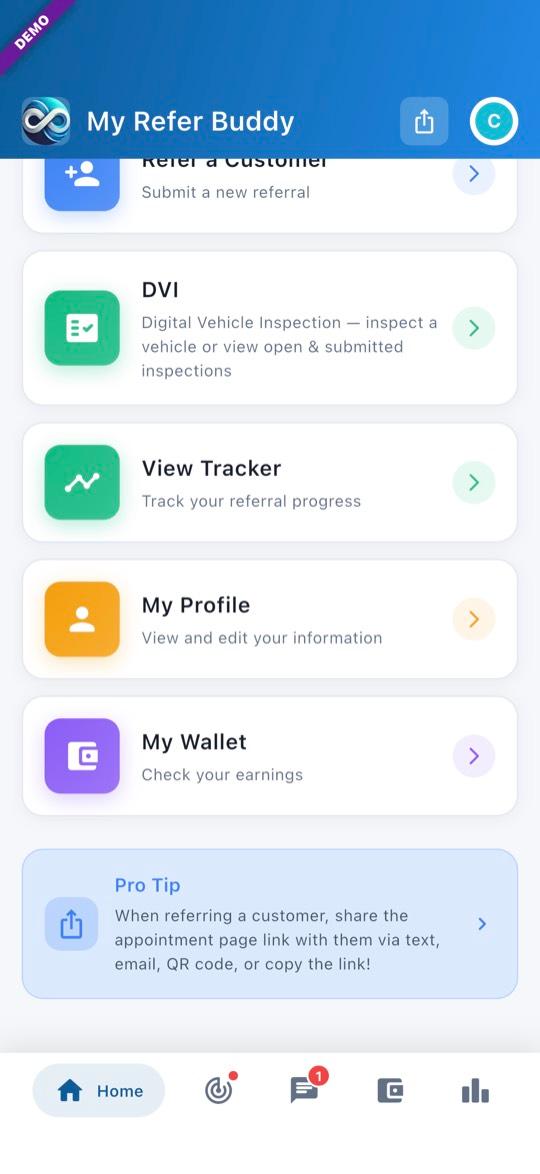
1Open the DVI
On Home, tap DVI.
2The Open list
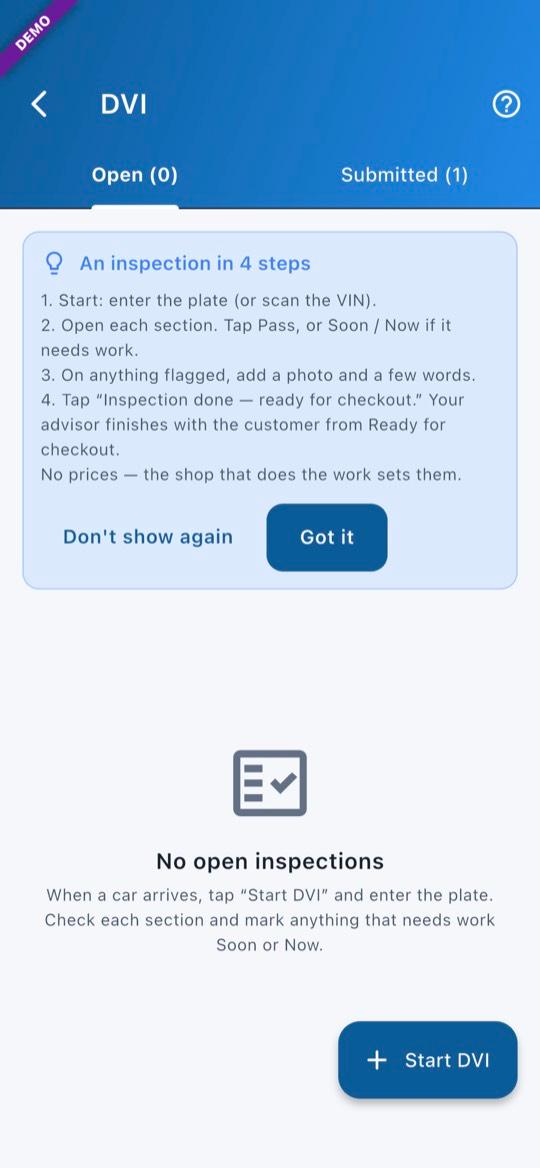
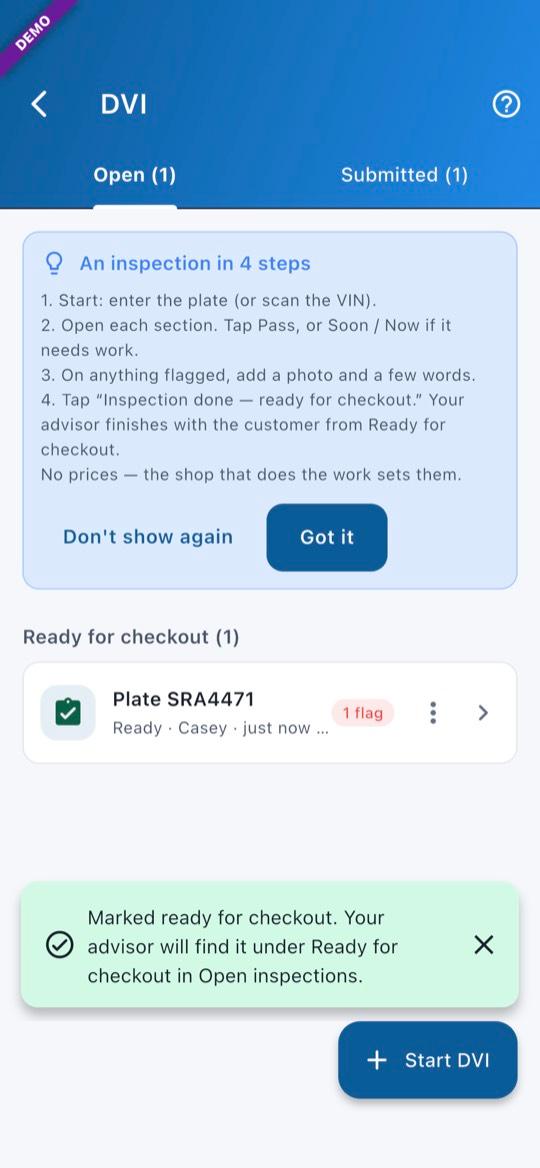
Open lists the shop’s inspections. Every teammate sees the same list. Cars the tech has finished are listed first, under Ready for checkout. Tap a car to open it, or Start DVI for a new one.
Start an inspection
3Enter the plate
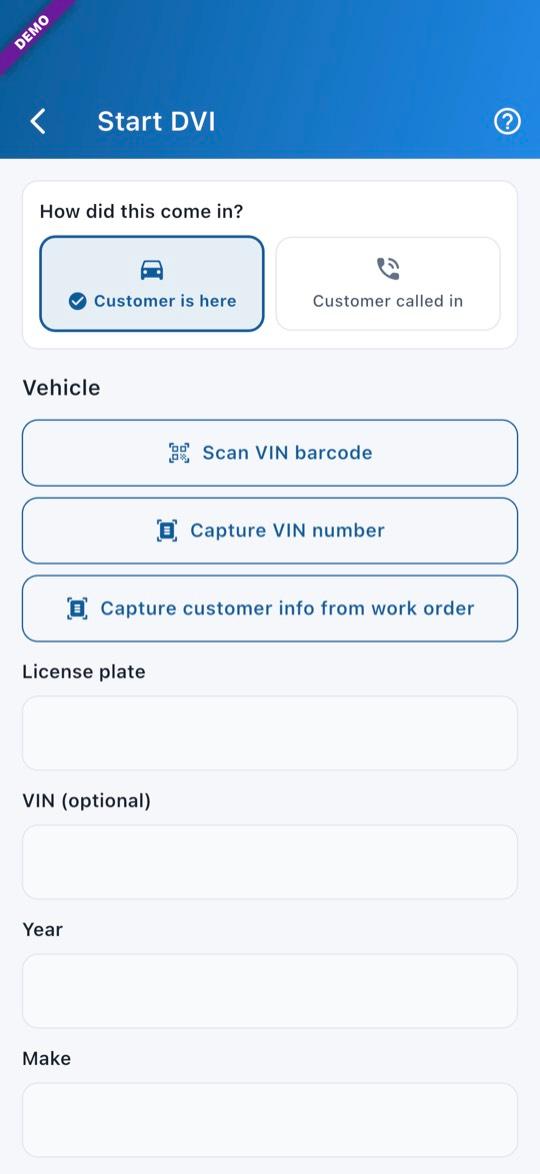
Type the plate, or tap Scan VIN barcode. Then tap Start DVI.
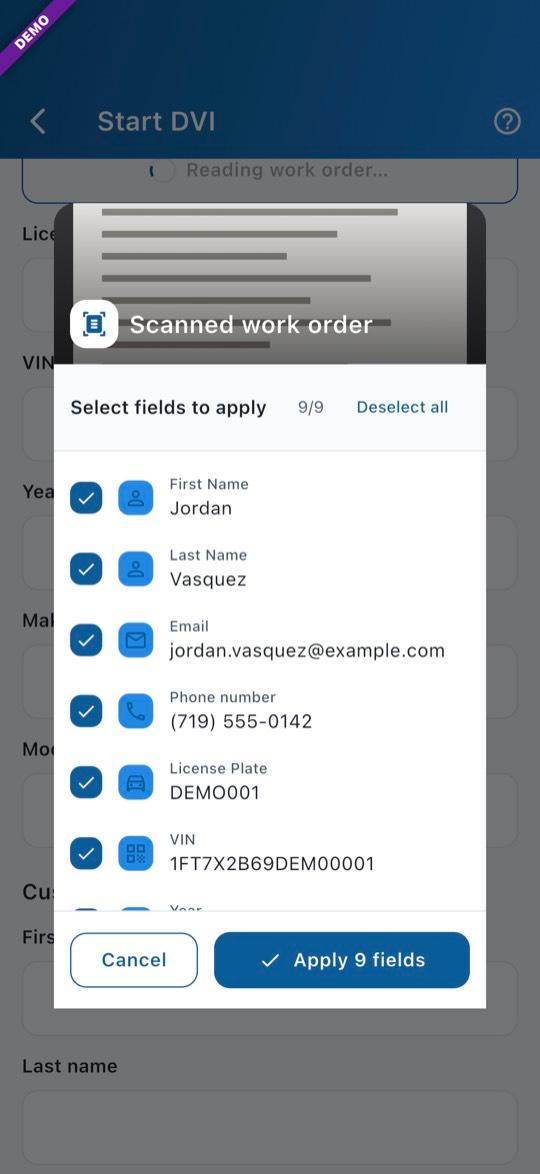
4Or start from the work order
A service advisor can tap Start DVI, then Capture customer info from work order.
5Check what it read
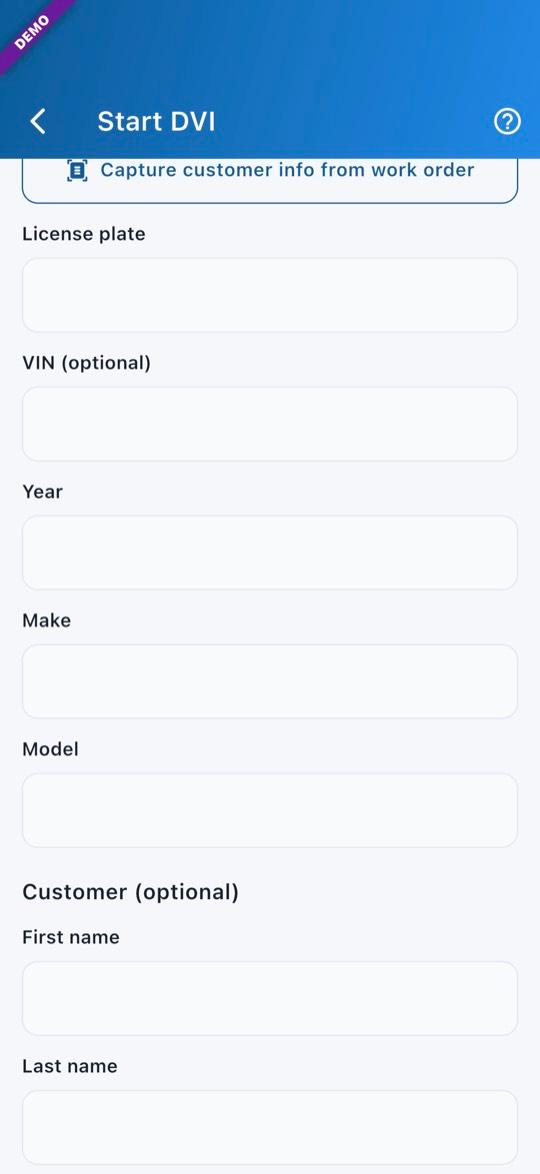
Check the fields it read from the work order, tap Apply, then Start DVI. The tech then opens it from DVI → Open.
Do the checklist
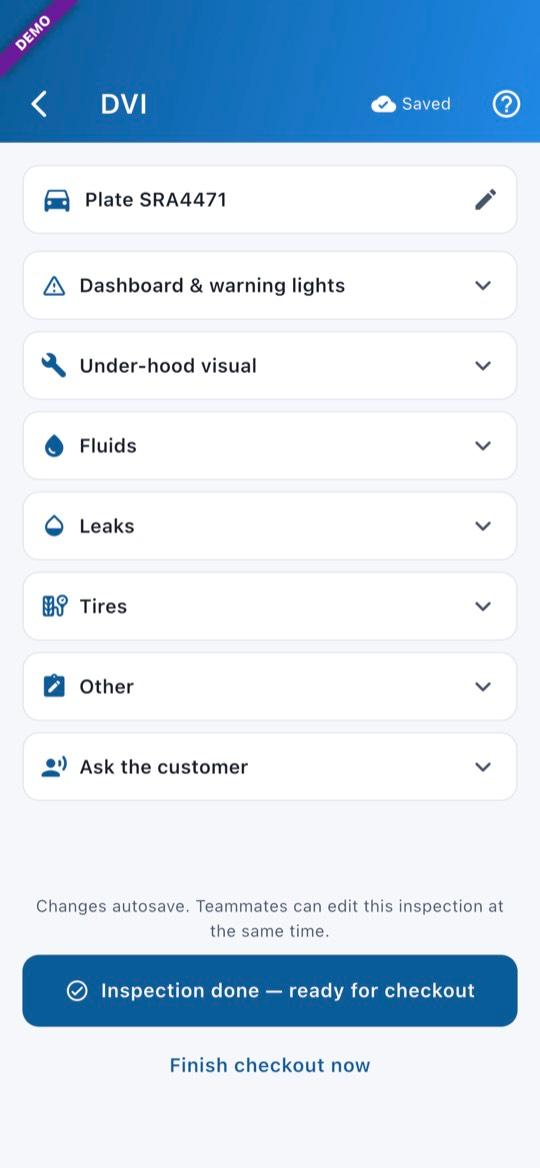
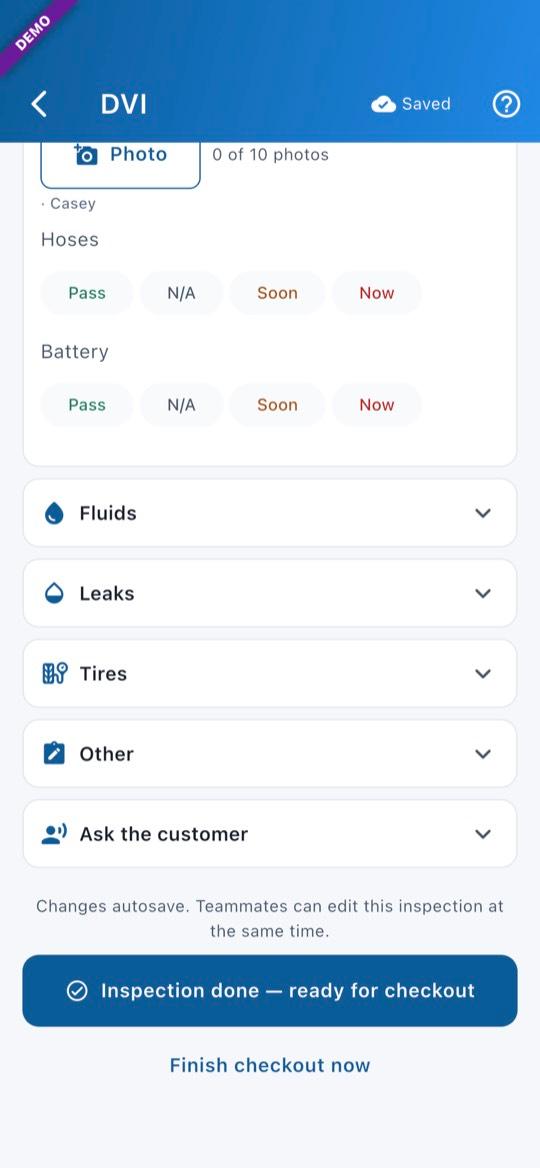
6Open each section
Changes save as you go, and teammates can work on the same inspection at the same time.
7Pass, Soon or Now
Tap Pass, or Soon / Now if it needs work.
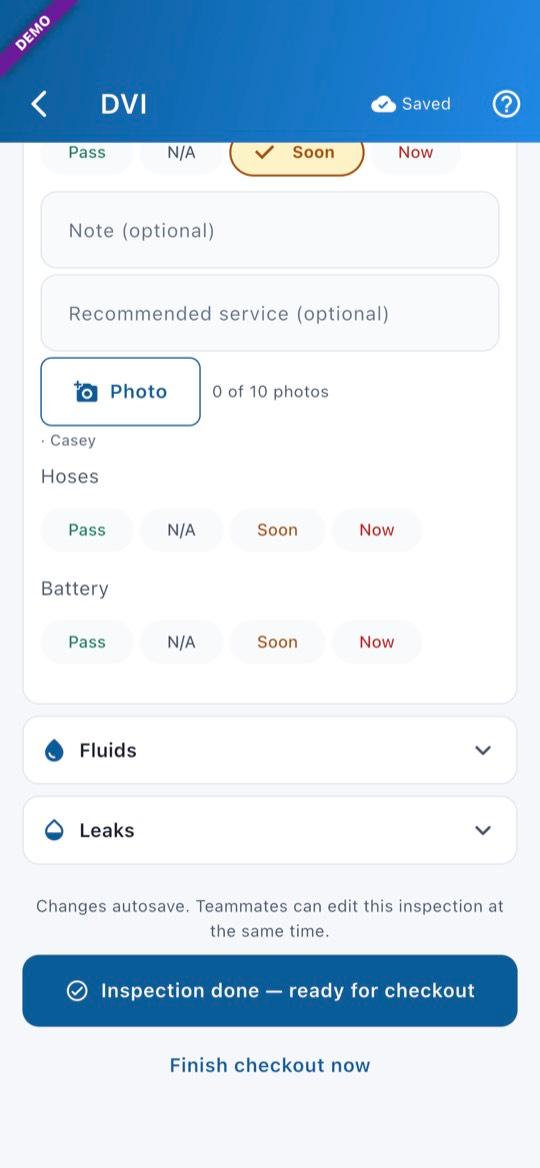
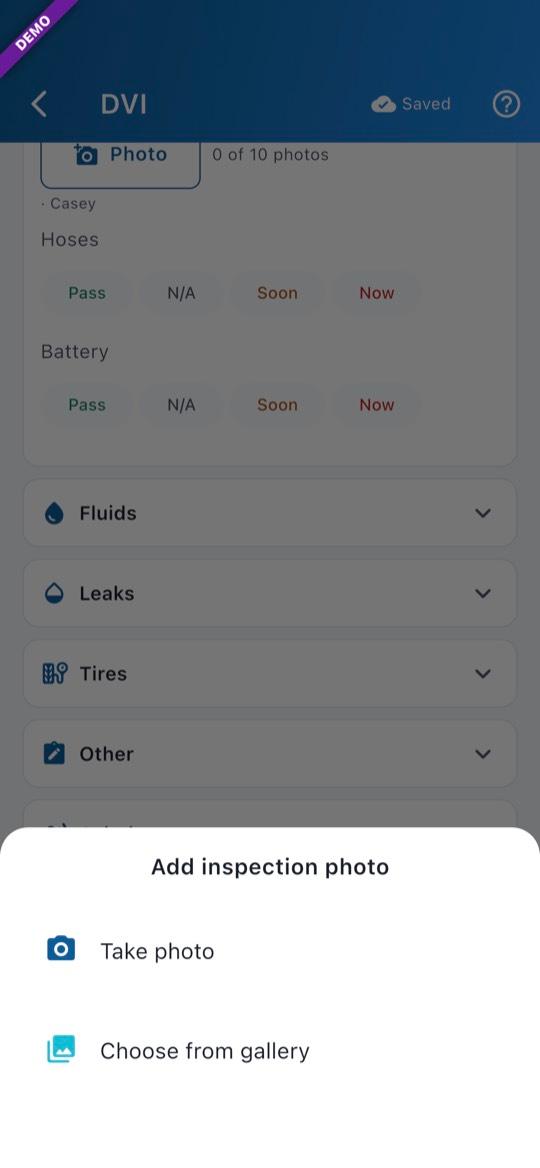
8Photo and a few words
On anything flagged, add a photo and a few words.
9Mark it ready for checkout
When you’re done, tap “Inspection done — ready for checkout”. You’re back on the list, and the car is under Ready for checkout on every teammate’s phone. To finish checkout yourself, tap Finish checkout now.
Finish at checkout (service advisor)
10Open the car
On your own phone: DVI → Open → tap the car under Ready for checkout.
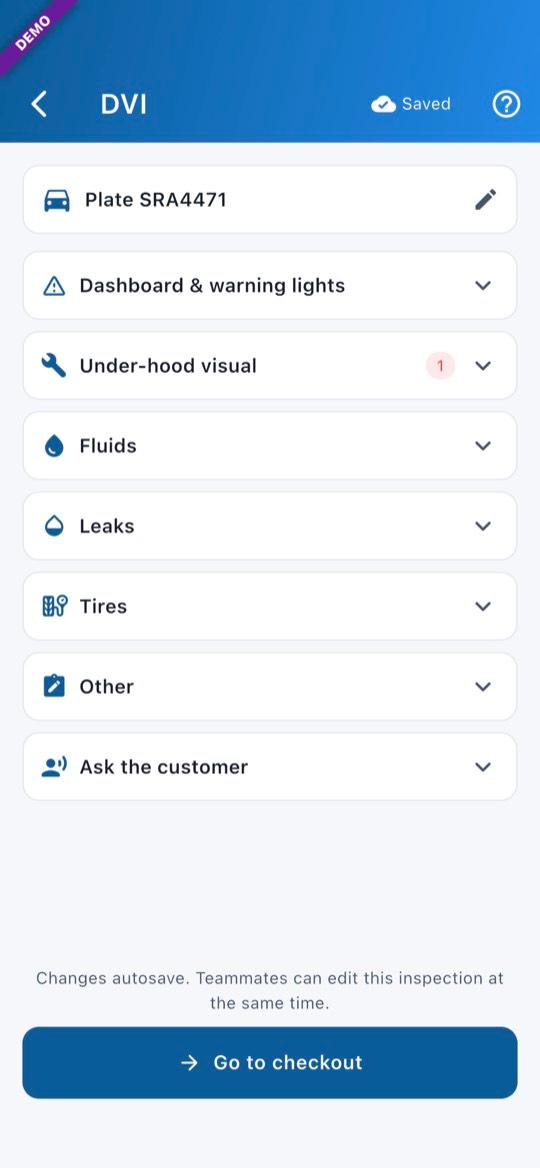
11Go to checkout
Look over the inspection, then tap Go to checkout.
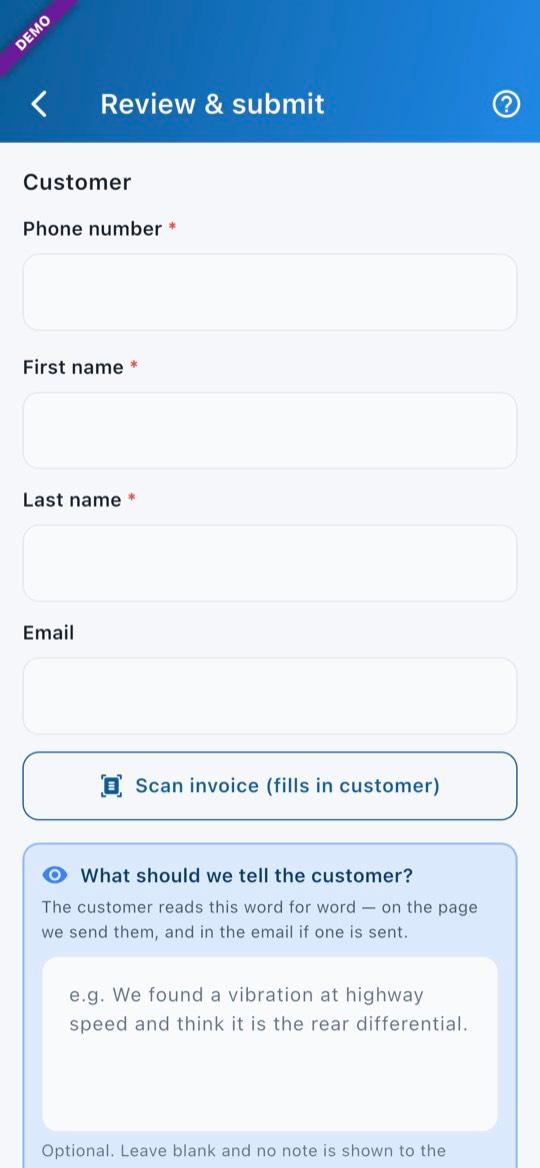
12Review & submit
The customer’s phone number comes first. Add their name, then tap Submit referral.
13Text, email, or just record it
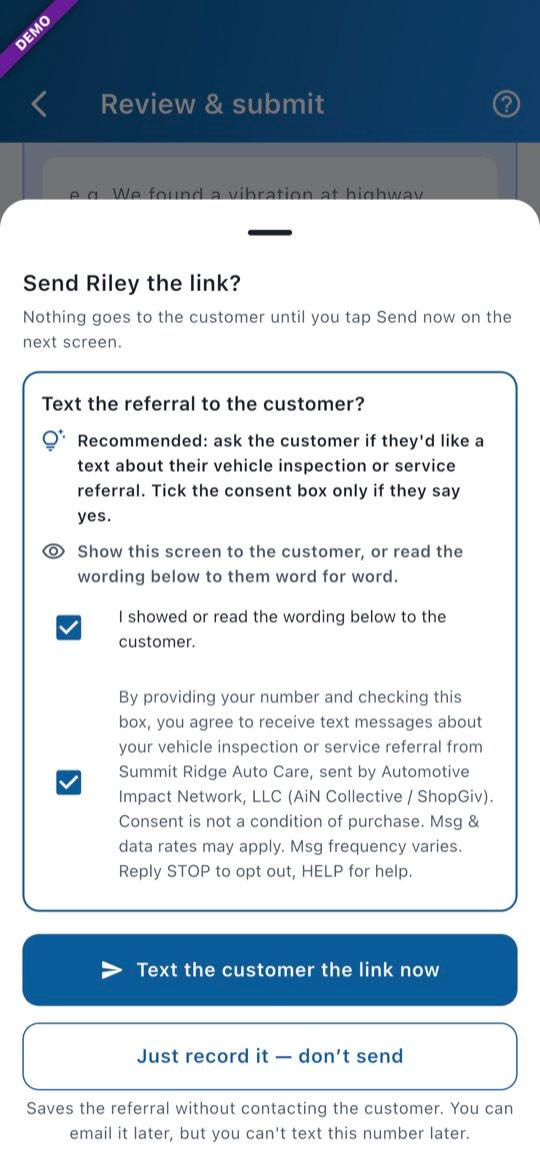
Before anything is saved, the app asks how to reach the customer. To text them, show them the wording or read it word for word, then tick “I showed or read the wording below to the customer.” Tick the box below it only if they say yes. Or pick Email, or Just record it — don’t send.
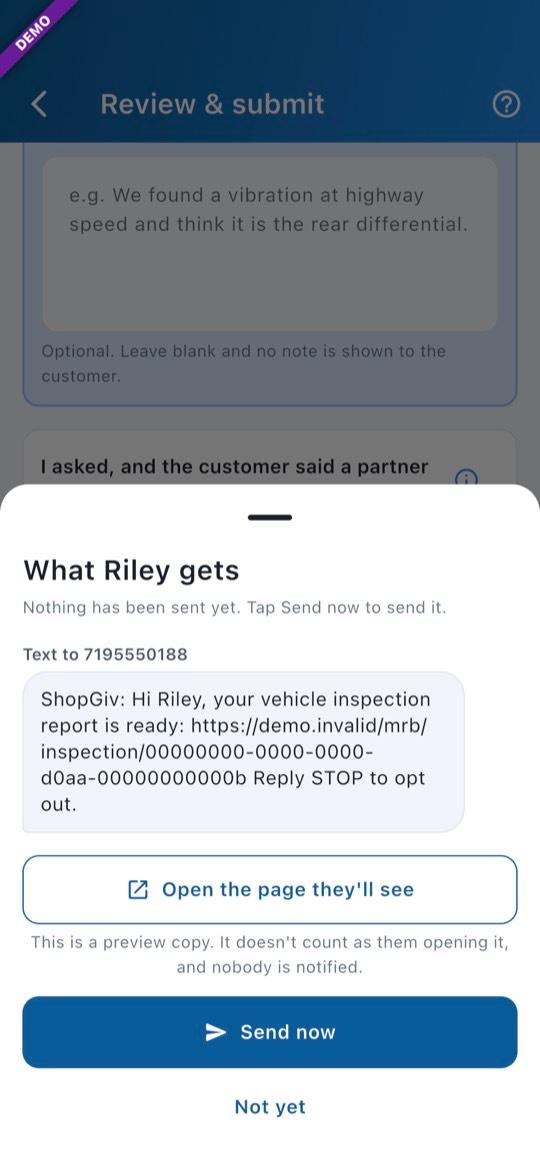
14Check what they get, then Send now
The app shows exactly what the customer gets. Tap Send now. A text goes between 8 am and 8 pm their time. Tap Not yet to send it later: it shows Not sent to the customer yet until you do.
15See it again later
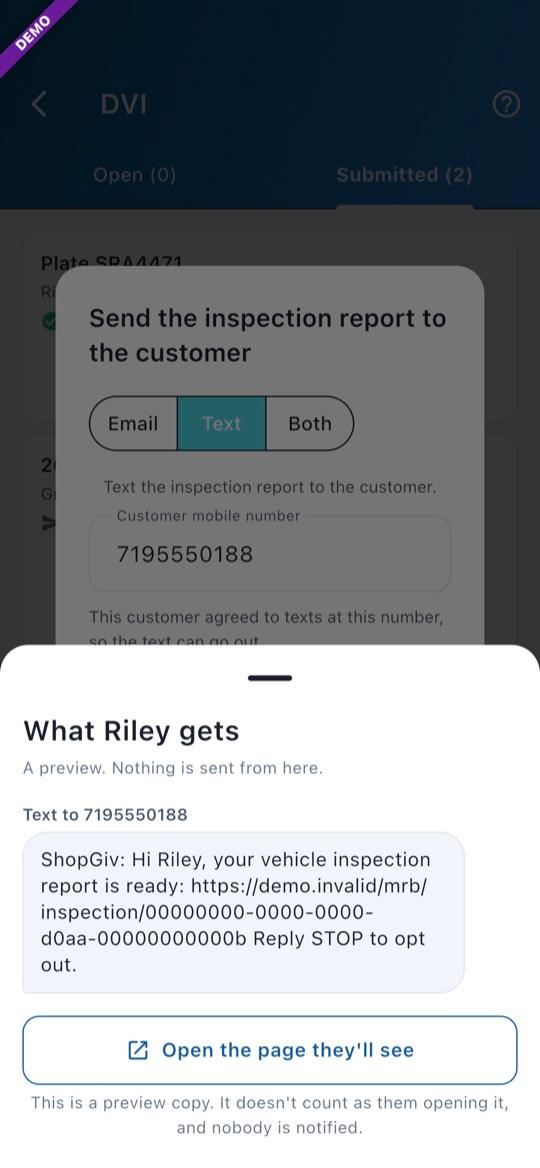
Later, under Submitted, tap Resend (or Send report), then “Preview what [name] gets”.
- No prices in the inspection. The shop that does the work sets them.
- For a car that’s at the shop (“Customer is here”), the customer’s phone number is needed to submit, not to start.
- Pictures show the offline demo. Vehicles and customers are made up.
Questions? Email info@AINcollective.com or call (719) 463-0050.